

Most people who work in hybrid setups don’t actually struggle with the work itself. What breaks down is the translation layer between how your brain prefers to process information and how your tools force you to store it. Paper feels immediate and natural, right up until you need to reference something from three months ago and you’re flipping through pages hoping you didn’t skip that week or use a different notebook entirely.
Docking stations promise to turn any location into a full workstation, but only if you remember to pack them and only if the monitors at your destination use the same ports yours does. Charging setups multiply until you’re traveling with four different cables and two wall adapters, each one mission-critical for a different device. That friction compounds, and eventually you’re spending more mental energy managing the tools than actually using them. Hybrid work stops feeling flexible and starts feeling like constant context-switching with a side of gear anxiety.
What makes a tool stick isn’t how many features it has or how clever the engineering is. It’s whether the tool disappears into your workflow or constantly reminds you it exists.
Rocketbook Flex Planner
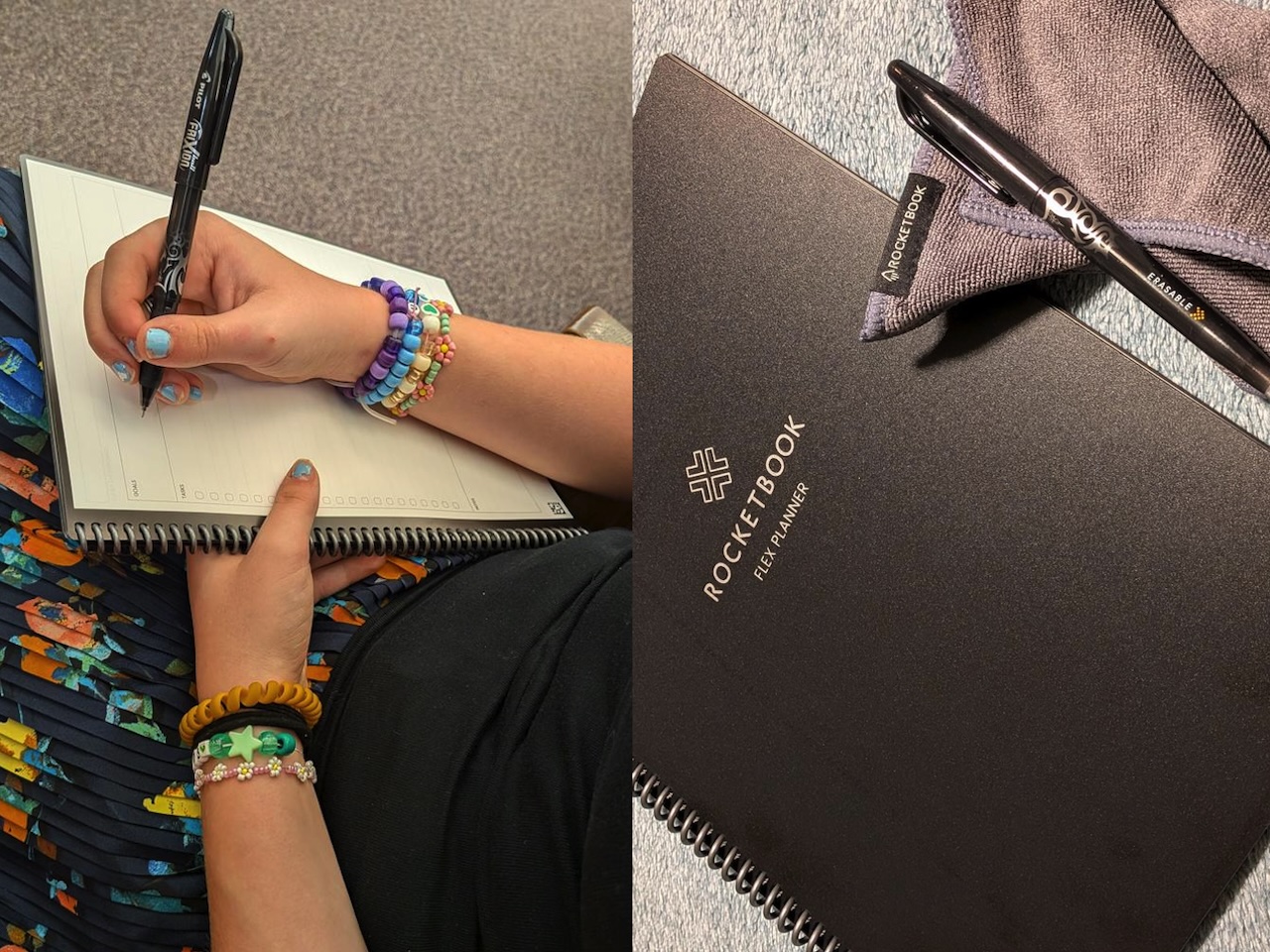
At 8.5 x 11 inches, Rocketbook’s reusable planner won’t fit in a jacket pocket, but it sits flat in any bag without adding the bulk or weight of a bound planner that’ll be obsolete in six months. You write on 48 pages that feel smooth, almost like writing on plastic, because that’s essentially what you’re doing. The pages don’t absorb ink the way paper does, so pen strokes dry instantly and won’t smudge even if you close the planner two seconds after finishing a sentence. That texture takes about ten minutes to adjust to if you’re used to traditional paper, but once you adapt, the friction disappears and you stop noticing it entirely.
The writing surface feels foreign at first, slicker than paper but not quite like glass, and your pen glides across it with less resistance than you expect. If you’ve spent years writing on textured paper stock, that smoothness might feel wrong initially, but the trade is immediate: no ink bleed, no ghosting through pages, and complete erasability without damaging the surface.
Scanning happens through Rocketbook’s app, which uses your phone’s camera to capture clean digital copies that automatically route to Google Drive, Dropbox, Evernote, or whatever cloud service you already rely on. That automatic routing is what separates this from every other analog-to-digital workflow, because the instant you introduce a step where you have to remember to manually export something later, that task never happens. You’ll tell yourself you’ll transfer your notes this weekend, and three months later you’re still carrying unsaved plans around in physical form, which defeats the entire point. The Rocketbook Flexbook Planner eliminates that failure mode completely.
Erasing takes a damp cloth and fifteen seconds. The surface goes blank once dry, with no dust, smudging, or torn corners. That reusability removes friction from revision in a way bound planners can’t match, because permanent notebooks punish you for changing plans. This one expects it. Plans shift constantly when you’re hybrid, and fixed layouts stop working fast. Weekly spreads become irrelevant when meetings move, and rigid structures feel constraining when your schedule never looks the same twice.
Smart titles and symbols at the bottom of each page let you direct scans to specific destinations without opening menus or selecting folders manually, so weekly planning goes to one folder, meeting notes route somewhere else, and quick sketches get archived separately without requiring any additional taps or decisions on your part. Seven daily layouts give you options for time blocking, task lists, or habit tracking, while two weekly spreads offer horizontal or vertical week views depending on how you prefer to see your schedule. None of the templates lean decorative or cute, which is a relief if you’re trying to actually use this for work instead of Instagram.
At $42.99, this targets people who’ve tried going fully digital for planning and found themselves constantly fighting the interface, but who also can’t justify buying a new paper planner every year that gets tossed once December ends.
Price: $42.99
Where to buy: Amazon, Rocketbook
MOKiN 13-in-1 Docking Station
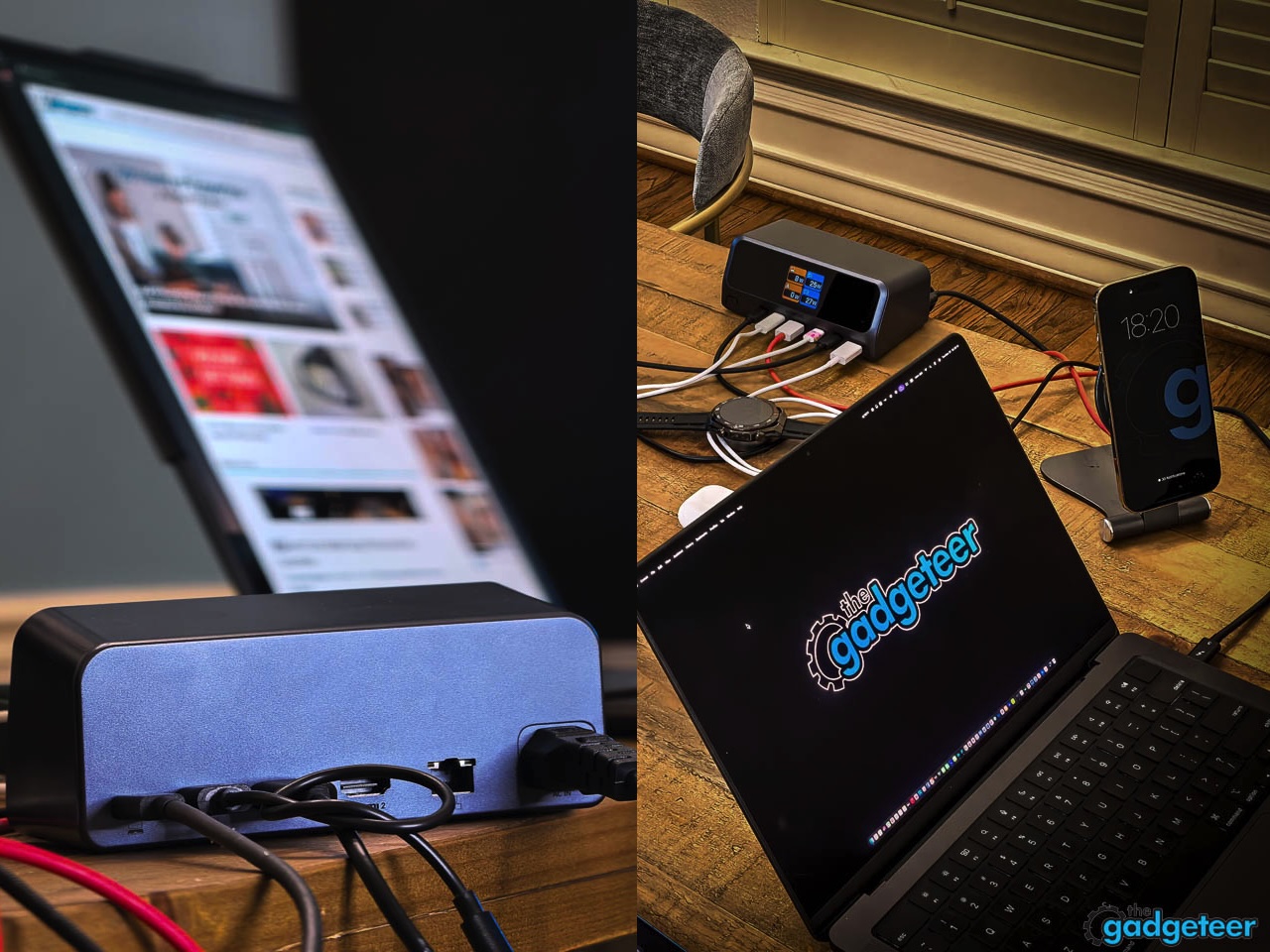
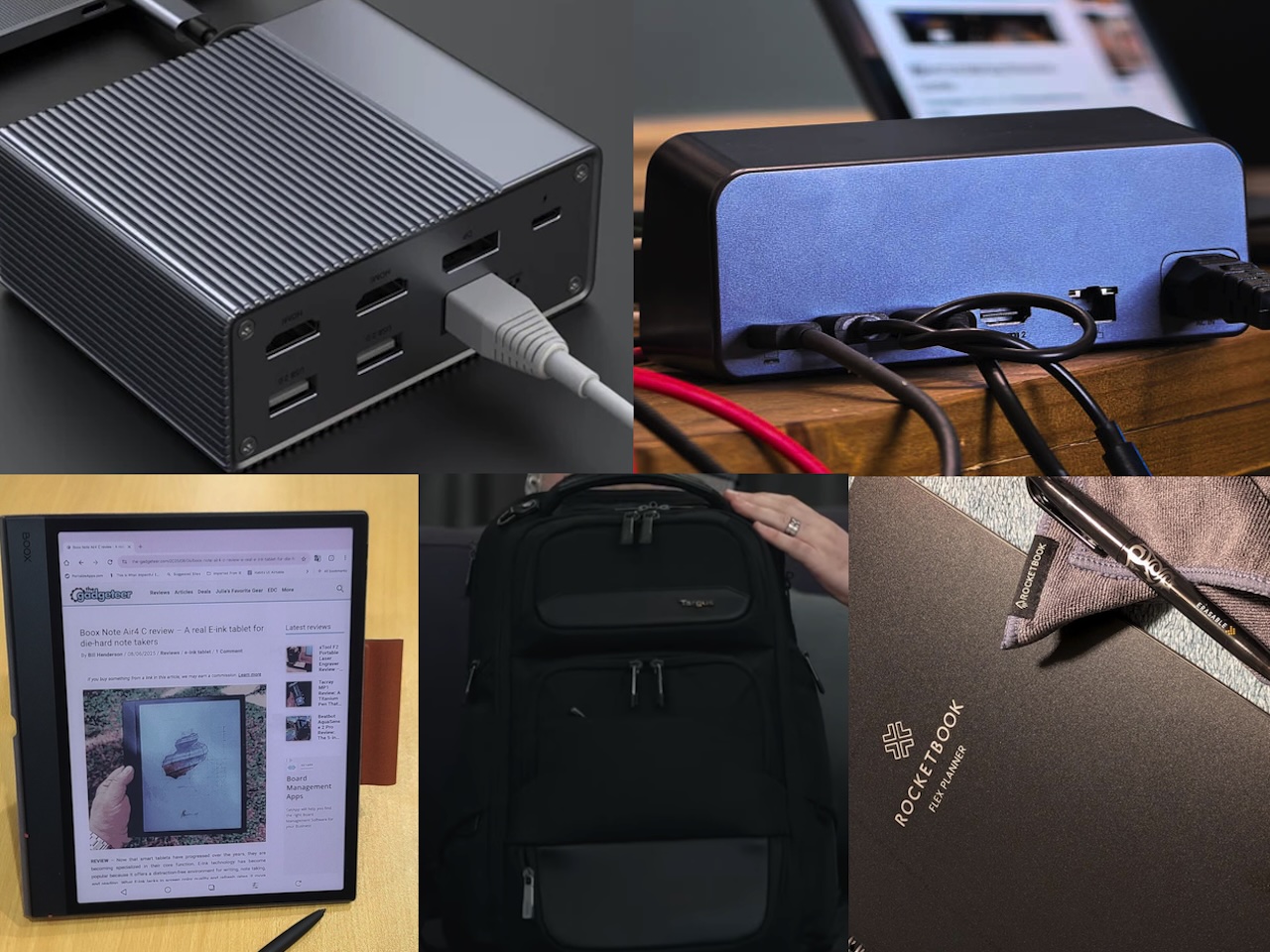
MOKiN’s horizontal docking station takes up roughly the same desk footprint as a coffee mug, which matters more than it sounds when you’re working from temporary setups that don’t have dedicated desk real estate for gear. Two HDMI ports handle dual 4K displays at 60Hz, while two USB-C ports and one USB-A port support 10Gbps data transfer speeds that move 20GB in about 20 seconds when you’re backing up project files or syncing large folders. A 2.26-inch LCD screen on the front shows which ports are currently active, so you know at a glance whether your external drive is connected or if the ethernet port is live without having to check your laptop’s system preferences.
Single-cable connection means you plug one USB-C cable into your laptop and everything else stays connected to the MOKiN 13-in-1 Docking Station, which eliminates the multi-cable setup routine that makes people skip using peripherals entirely when they’re only going to be at a location for a few hours. You notice the difference immediately the first time you pack up to leave, because disconnecting takes two seconds instead of two minutes.
Charging capacity hits 160W total output split across three USB-C ports at 100W max each and one USB-A port at 12W, so you can power your laptop, charge your phone, top off wireless earbuds, and keep a tablet ready without hunting for wall outlets or additional chargers. Gigabit Ethernet provides wired network stability for video calls or large uploads when Wi-Fi can’t keep up with the load, and if you’ve ever been in a crowded coworking space during peak hours, you know exactly when that becomes necessary. The horizontal design with an 80cm cable and magnetic base keeps the hub stable without sliding around when you’re plugging things in. Aluminum construction handles daily wear better than plastic shells that crack or scuff after a few months of getting tossed in bags.
Compatibility spans Windows 10 and 11, ChromeOS, and macOS, as long as your laptop supports DP Alt Mode and Power Delivery over USB-C, which most laptops released after 2020 do. If your laptop is older than that, check the specs before buying.
Price: $99.99
Where to buy: Amazon | MOKiN
HyperDrive GEN2 10-in-1 USB-C Dock
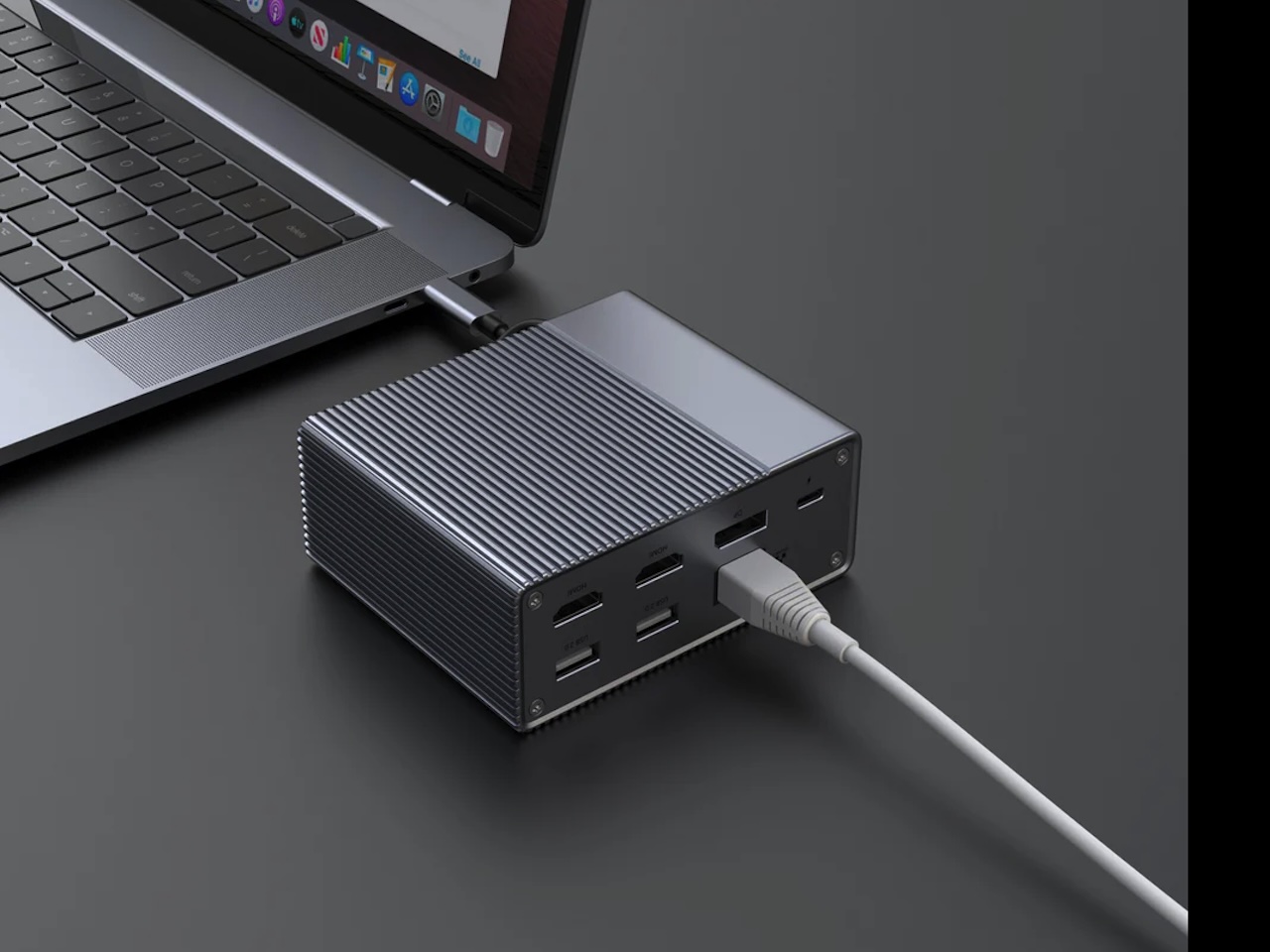 Released in 2020, the HyperDrive GEN2 10-in-1 USB-C Dock is old by tech standards, but the core functionality hasn’t aged out. Compact enough to fit in a laptop bag’s front pocket, this hub packs 10 ports into a slim metallic form factor with ridged heat dissipation that doesn’t add noticeable weight when you’re carrying it daily. Two HDMI ports and one DisplayPort support triple extended displays at 4K 60Hz, which works well for traders watching multiple market feeds, designers referencing mockups while editing in another window, or anyone who finds a single laptop screen limiting when working through complex tasks. That display setup remains relevant six years later, because most hybrid workers still aren’t running more than three monitors simultaneously.
Dual USB-A ports at 10Gbps move large files quickly, and 100W USB-C Power Delivery charges your laptop while everything else stays connected, which means you’re not choosing between charging your laptop or using peripherals. That combination eliminates the bag-space calculation where you’re deciding whether packing your charger and a separate USB hub is worth the weight, because this consolidates both into one piece of gear. Gigabit Ethernet provides wired network stability when Wi-Fi can’t keep up, and the 3.5mm audio jack handles headphones or external speakers without requiring Bluetooth. Driverless plug-and-play installation works across MacBook, PC, and Chromebook setups without software downloads or firmware updates. At $149.99, this sits well below newer docks with similar port counts, and the age shows mostly in the lack of newer standards like USB4 or HDMI 2.1, but if you’re not pushing 8K displays or need cutting-edge transfer speeds, the GEN2 handles hybrid work setups without feeling outdated.
Price: $149.99
Where to Buy: Hyper
BOOX Note Air5 C
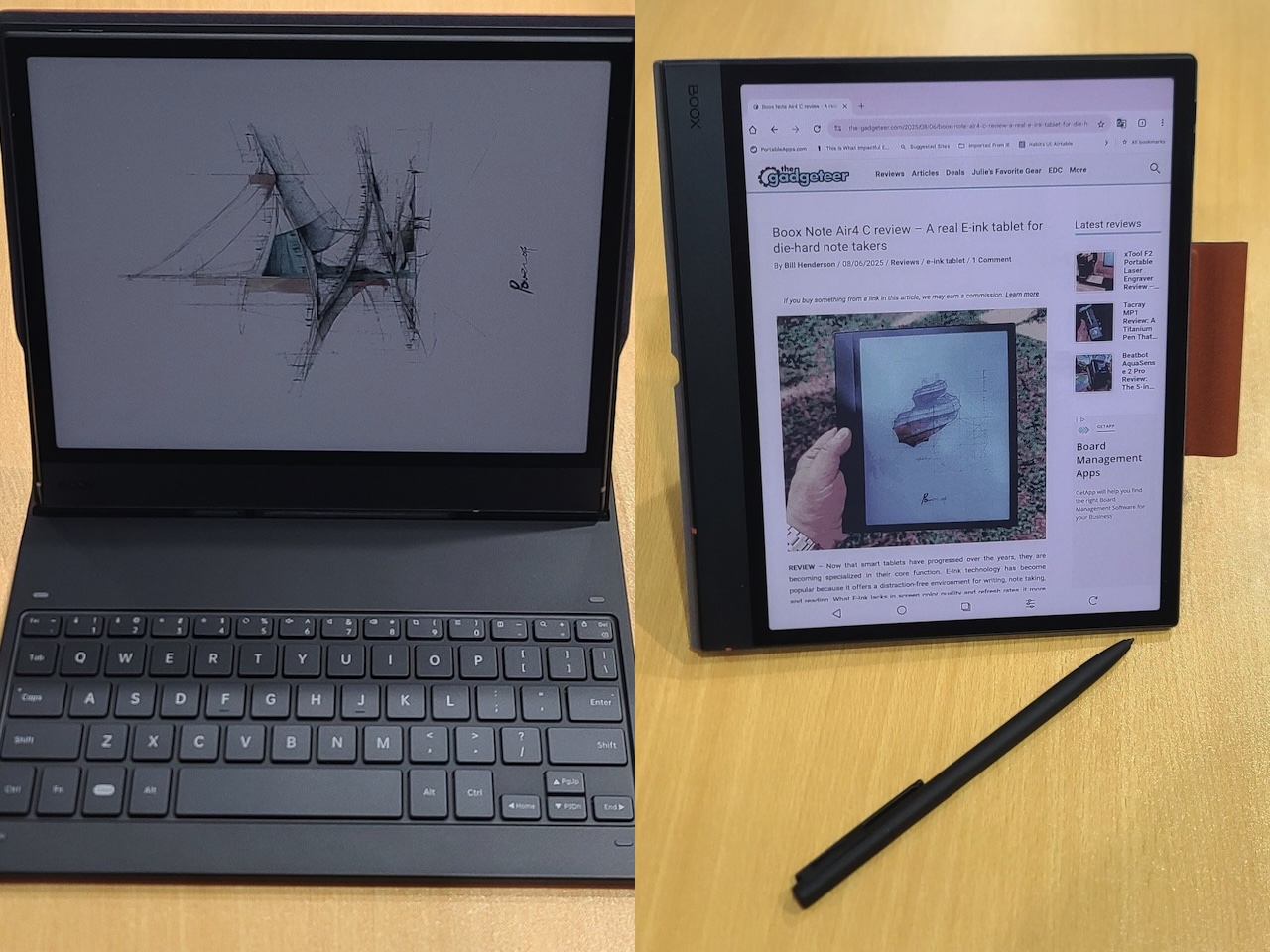 The Boox Note Air5 C Color E-ink Android Tablet uses a 10.3-inch color e-ink display that reads like paper under any lighting but syncs notes to the cloud automatically, which solves the problem tablets create when you’re trying to read long documents without eye strain or take handwritten notes that need to exist digitally later. The screen refresh feels slower than LCD or OLED, but that’s the trade for a display that doesn’t fatigue your eyes after two hours of continuous reading, and if you’re working through dense PDFs or annotating contracts, that trade makes sense.
Handwriting recognition converts your pen strokes to searchable text, so notes taken during meetings become findable later without requiring you to remember which notebook or date they’re filed under. The stylus uses Wacom EMR technology with 4,096 pressure levels, which means line weight responds to how hard you press in a way that feels closer to actual pen-on-paper than capacitive styluses on glass. That pressure sensitivity matters when you’re sketching diagrams or marking up documents, because light annotations stay subtle while heavy strokes stand out, and you’re not fighting the tool to communicate visual hierarchy. Drawing on glass always feels off when you’re used to paper, but this bridges that gap better than most alternatives. The stylus doesn’t require charging or batteries, so there’s no dead-stylus anxiety when you’re trying to take notes during back-to-back meetings.
Color e-ink displays can’t match the saturation or refresh speed of traditional screens, but they handle PDFs with colored charts and highlighted text well enough that you’re not losing critical information when reviewing spreadsheets or presentations. The 6GB of RAM keeps multiple large PDFs open without lagging, and 64GB of storage holds thousands of documents locally so you’re not dependent on connectivity to access reference materials. Android 15 runs underneath, which means you can install Kindle, Google Drive, Dropbox, or whatever reading and productivity apps you already use, but the e-ink screen limits how useful apps with heavy animation or video become. Most productivity apps work fine once you adjust expectations about refresh speeds and accept that smooth scrolling isn’t happening here.
Battery life stretches to several weeks with typical use because e-ink only draws power when the screen refreshes, not when displaying static content. That longevity removes charging anxiety when you’re traveling or working remotely for extended periods.
This targets people who read and annotate documents for hours daily and find traditional tablets create eye strain or battery anxiety, but who also need their notes to sync digitally instead of staying trapped in physical notebooks. If you primarily consume video or need fast app switching, standard tablets work better, but for text-heavy work that spans multiple locations, the analog reading experience with digital backend makes more sense than either option alone.
Price: $529.99 (Standard cover) $606.99 (keyboard cover)
Where to buy: Boox, Amazon
Targus Heritage Luxe Backpack
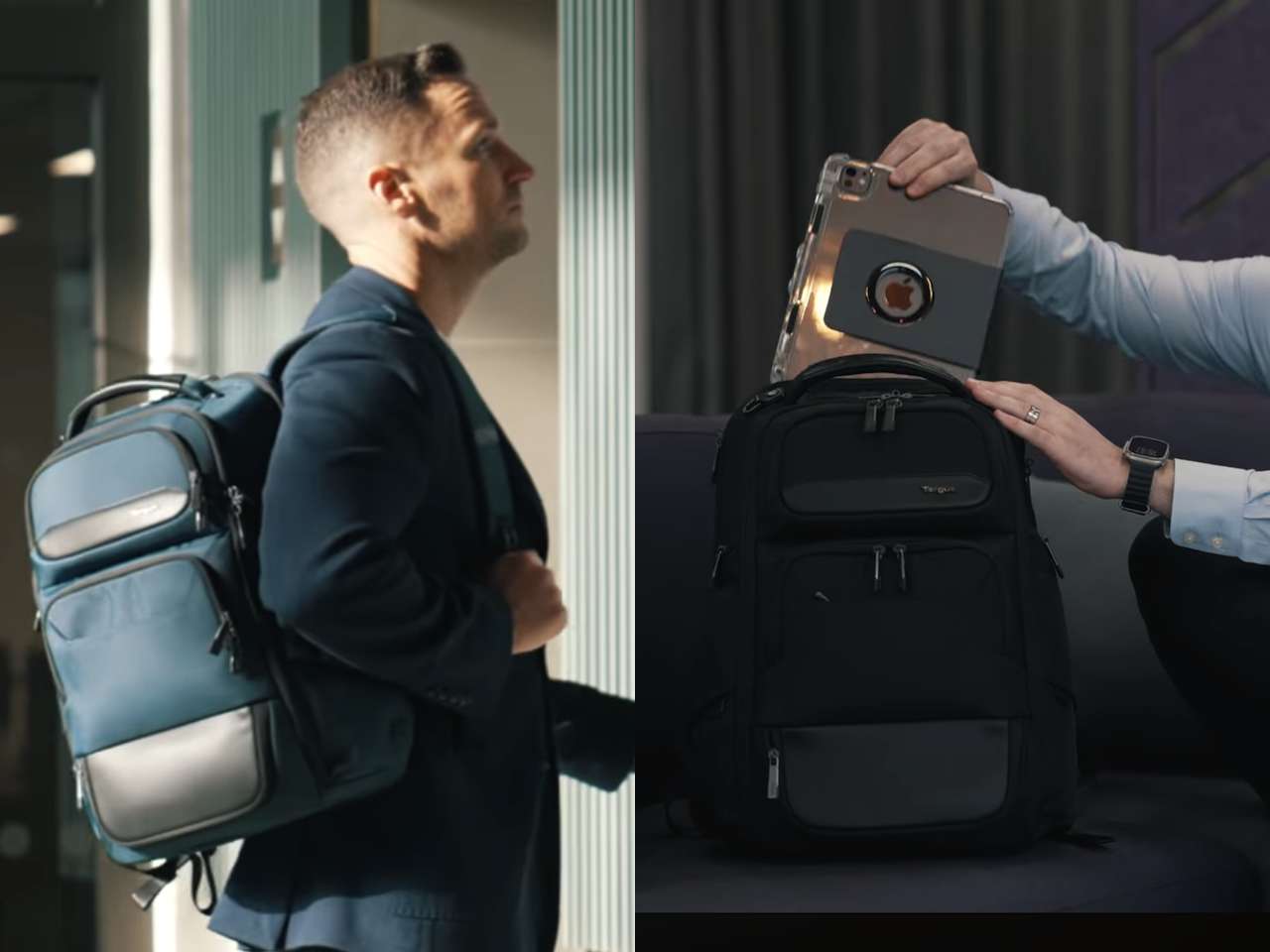 Targus built this backpack with a dedicated padded compartment for 15-16 inch laptops that keeps your device separated from everything else you’re carrying. That separation matters when you’re tossing notebooks, chargers, water bottles, and pens into the same bag, because you’re not risking a water bottle leak soaking your laptop or a pen cap coming off and marking up the screen.
Internal organization includes pockets sized specifically for notebooks, planners, charging cables, external drives, and smaller accessories like USB adapters or wireless mice, which means you’re not digging through a single large compartment trying to find your charging cable while your laptop battery is at 4% during a work session at a cafe. Everything has a designated spot, and you can grab what you need without unpacking the entire bag. External materials handle daily commuting without showing wear after a few months of subway rides or coffee shop runs, and the shoulder straps distribute weight evenly so you’re not dealing with sore shoulders after carrying a laptop, charger, notebook, and other work essentials for more than twenty minutes. The weight distribution matters more than it sounds when you’re standing on trains or walking between meetings, because bags that pull unevenly force you to constantly adjust the straps or switch shoulders. This one sits balanced across both shoulders without creating pressure points, even when fully loaded with a day’s worth of gear.
Commutes that involve walking several blocks or standing on crowded public transit benefit from bags that don’t dig into your shoulders or feel unbalanced when worn. The design reads professional enough for offices but practical enough for cafes, which means you’re not switching bags depending on where you’re working that day. Capacity fits a laptop, planner or notebook, charger, mouse, external drive, water bottle, and miscellaneous accessories without becoming overstuffed or bulging at the seams. One bag handles both work contexts without looking out of place in either, and that consistency removes one more decision from your morning routine.
Price: $284.99
Where to Buy: Targus
Choosing Tools That Don’t Create New Problems
Hybrid work introduces friction at the boundaries between locations, between analog and digital modes, and between what you need to carry versus what you can actually fit in a bag. Reusable planning that backs up automatically solves the handwriting-versus-searchability tension without forcing you to choose one or the other. Docking stations that consolidate connectivity through a single cable remove setup friction that makes people skip using full workstation setups when they’re only going to be somewhere for a few hours. Wireless charging that travels removes the cable-and-adapter multiplication problem that turns packing into an anxiety-inducing checklist exercise.
Good hybrid tools don’t make you choose between analog thinking and digital convenience, and they don’t introduce new problems while solving old ones. These five understand that distinction.
Love our content?
Sign up for our newsletter today.
No ads, no spam, just links to our latest articles!